Linux | Managing Services
System services are one of the most important parts of a Linux system. They start applications in the background, open sockets, mount file systems, run timers and keep your system operational.
On modern Linux distributions this is usually handled by systemd. The main CLI tool to interact with systemd is systemctl.
1. What is systemd?
systemd is the init system and service manager used by most modern Linux distributions. It is the first userspace process started by the Linux kernel and usually runs as PID 1.
You can verify this with:
Typical output:
systemd is responsible for:
- starting and stopping services
- handling dependencies between services
- managing sockets
- mounting file systems
- starting timers
- logging service output through journald
- supervising processes
In older Linux distributions this was often handled by SysVinit or other init systems.
2. What is systemctl?
systemctl is the command line tool used to control systemd. With systemctl you can start, stop, restart, enable or inspect services.
Basic syntax:
For example:
The .service suffix is optional in many cases, so this also works:
3. How to find services
3.1 List running services
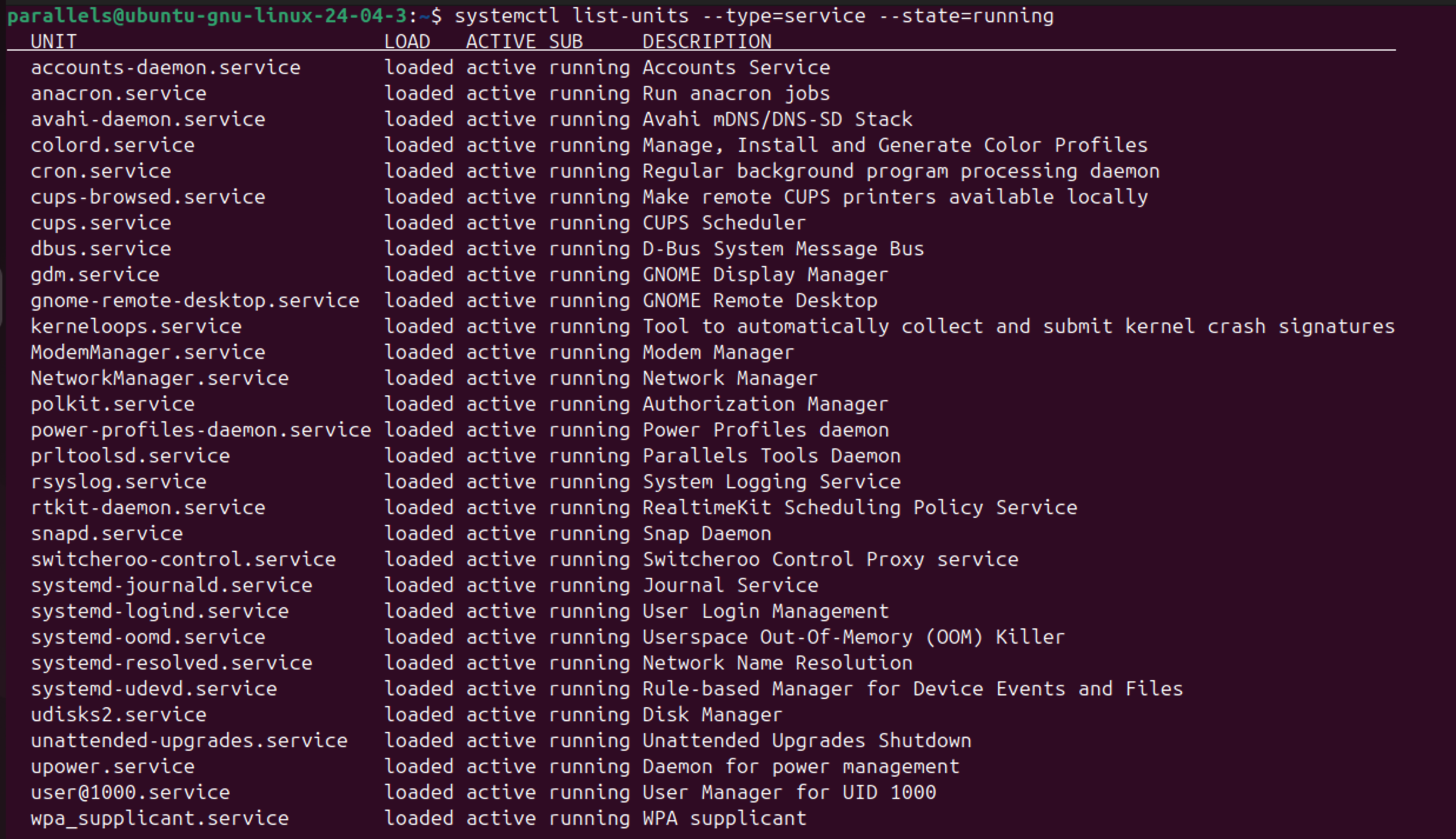
This lists all currently running services.
3.2 List all loaded services
This shows active, inactive and failed services.
3.3 List installed service files
This command shows service files and their enablement state.
Typical states:
enabled→ starts automatically during bootdisabled→ does not start automaticallystatic→ cannot be enabled directly, usually used as dependencymasked→ blocked from being started
3.4 Search for a service
or:
You can also search directly in the unit directories:
Depending on the distribution, the vendor directory can also be:
4. Where are services located?
systemd unit files are usually stored in different locations. The location is important because it tells you who owns the unit file and how it should be managed.
4.1 Vendor provided unit files
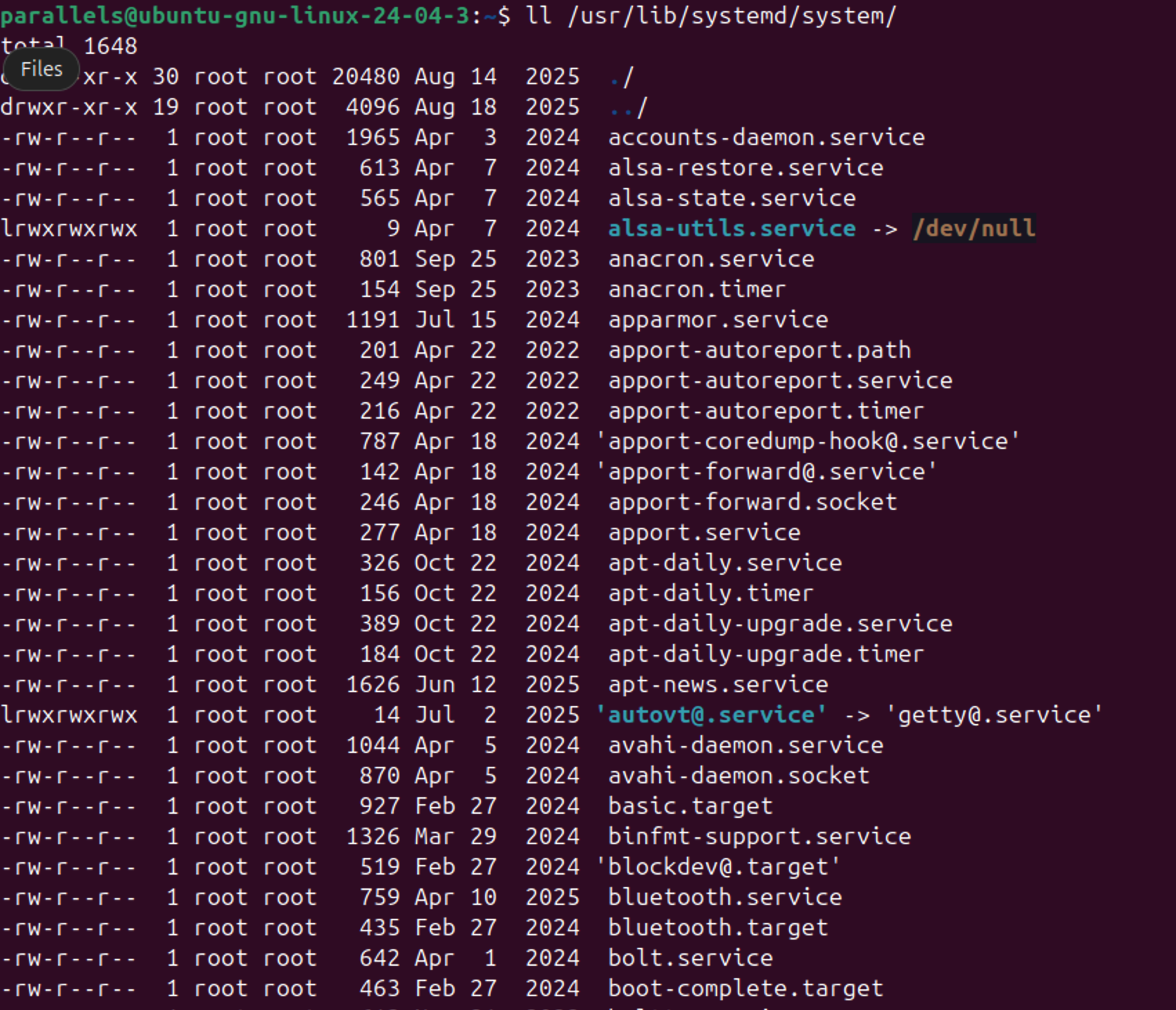
or on some distributions:
These files are installed by packages from your distribution. You should usually not edit them directly, because package updates can overwrite your changes.
4.2 Local administrator unit files
This directory is used for local services and overrides. If you create your own service, put it here.
4.3 Runtime unit files
This directory is used for temporary runtime units.
Content under /run is not persistent across reboots.
5. What are init files?
Init files are files used by an init system to start and manage services.
With older SysVinit, services were controlled by shell scripts located under:
Example:
Those scripts usually supported commands like:
On modern systems with systemd, these old init scripts can still exist for compatibility. systemd can generate compatibility units for them, but the preferred way is to use native systemd unit files.
6. What are unit files?
A systemd unit file describes something that systemd can manage. A service is only one type of unit.
Common unit types:
.service→ background service/process.socket→ socket activation endpoint.timer→ scheduled task, similar to cron.mount→ mount point.target→ group of units, similar to runlevels.path→ path based activation
List all unit types:
7. What is a .service file?
A .service file describes how a service should be started, stopped and supervised.
A very basic service file looks like this:
[Unit]
Description=Example Service
After=network.target

[Service]
Type=simple
ExecStart=/usr/local/bin/example.sh
Restart=on-failure

[Install]
WantedBy=multi-user.target
Explanation
[Unit]→ metadata and dependenciesDescription→ human readable nameAfter→ start this unit after another unit[Service]→ service specific settingsType=simple→ process started by ExecStart is the main processExecStart→ command to start the serviceRestart=on-failure→ restart if the process exits with an error[Install]→ information used bysystemctl enableWantedBy=multi-user.target→ start during normal multi-user boot
8. What is a .socket file?
A .socket file describes a socket that systemd should listen on.
This can be used for socket activation.
The idea:
- systemd opens the network or filesystem socket
- systemd waits for incoming connections
- the related service is started only when needed
A simple socket file:
The matching service would usually have the same base name:
When a connection comes in on port 8080, systemd can start example.service.
9. Difference between .service and .socket
.service
A .service file manages a process.
It defines how an application starts and stops.
Example:
This starts the nginx process directly.
.socket
A .socket file manages a listening socket.
It can start the related service on demand.
Example:
This does not necessarily start the full Docker daemon immediately. It tells systemd to listen on the Docker socket and activate the service when required.
Quick comparison
| File type | Purpose | Example |
|---|---|---|
.service |
manages a process | ssh.service, nginx.service, docker.service |
.socket |
manages a socket and can activate a service | docker.socket, systemd-journald.socket |
10. Managing services
Start a service
Example:
Stop a service
Restart a service
Reload a service
Some services can reload their configuration without a full restart.
If you are not sure whether reload is supported, you can use:
Enable autostart
This configures the service to start automatically during boot.
Disable autostart
Enable and start at the same time
Disable and stop at the same time
11. Inspecting services
Status
This is usually the first command when troubleshooting a service. It shows:
- current state
- main PID
- last log lines
- loaded unit file
- whether the service is enabled or disabled
Show detailed properties
For example only show some specific properties:
Show the unit file
This is very useful because it also shows override files.
Check if a service is enabled
Check if a service is active
12. Logs with journalctl
systemd services usually write logs to journald.
You can read them with journalctl.
Show logs for one service:
Follow logs live:
Show logs since last boot:
Show the last 100 lines:
Example:
13. Editing services the right way
Do not directly edit unit files under /usr/lib/systemd/system/ or /lib/systemd/system/.
Those files belong to packages.
Use overrides instead:
This creates an override file under:
Example override:
After changing unit files or overrides, reload systemd:
Then restart the service:
14. Creating a custom service
Create a script:
Example content:
Make it executable:
Create the service file:
Content:
[Unit]
Description=Hello Service
After=network.target

[Service]
Type=simple
ExecStart=/usr/local/bin/hello-service.sh
Restart=always
RestartSec=5

[Install]
WantedBy=multi-user.target
Reload systemd:
Enable and start the service:
Check status:
Check logs:
15. Masking services
Sometimes you want to prevent a service from being started at all. This is called masking.
A masked service cannot be started manually or as a dependency. To undo this:
Use this carefully, because masking can break dependencies.
16. Useful troubleshooting commands
# Show failed units
systemctl --failed

# Show dependency tree
systemctl list-dependencies <service>

# Verify unit file syntax
systemd-analyze verify /etc/systemd/system/example.service

# Show boot time by unit
systemd-analyze blame

# Show critical boot chain
systemd-analyze critical-chain
17. Basic workflow
A common workflow when managing Linux services:
- Find the service
- Check the current state
- Inspect the unit file
- Check the logs
- Restart or reload
- Enable autostart if needed
systemd looks complicated at first, but most daily service management can be done with a small set of commands: status, start, stop, restart, enable, disable, cat and journalctl.
Cheers!