Common CLI Network Tools
A brief description of common CLI network tools.
1. Inspect open ports
1.1 Check local listening ports
Bash:
➡️ Explanation:
-t= TCP-u= UDP-l= listening only-n= numeric (no DNS/service name lookup)-p= process information

➡️ Quick interpretation rules
0.0.0.0:<port>→ open on all IPv4 interfaces[::]:<port>→ open on all IPv6 interfaces127.0.0.1:<port>/[::1]:<port>→ local-only, not reachable from networkLISTEN(TCP) → waiting for incoming connectionsUNCONN(UDP) → connectionless socket (normal for UDP)
PowerShell
# TCP listeners with process name
Get-NetTCPConnection -State Listen |
  Select-Object LocalAddress,LocalPort,@{Name='PID';Expression={$_.OwningProcess}},@{Name='Process';Expression={(Get-Process -Id $_.OwningProcess -ErrorAction SilentlyContinue).ProcessName}} |
  Sort-Object LocalPort

# UDP listeners with process name
Get-NetUDPEndpoint |
  Select-Object LocalAddress,LocalPort,@{Name='PID';Expression={$_.OwningProcess}},@{Name='Process';Expression={(Get-Process -Id $_.OwningProcess -ErrorAction SilentlyContinue).ProcessName}} |
  Sort-Object LocalPort
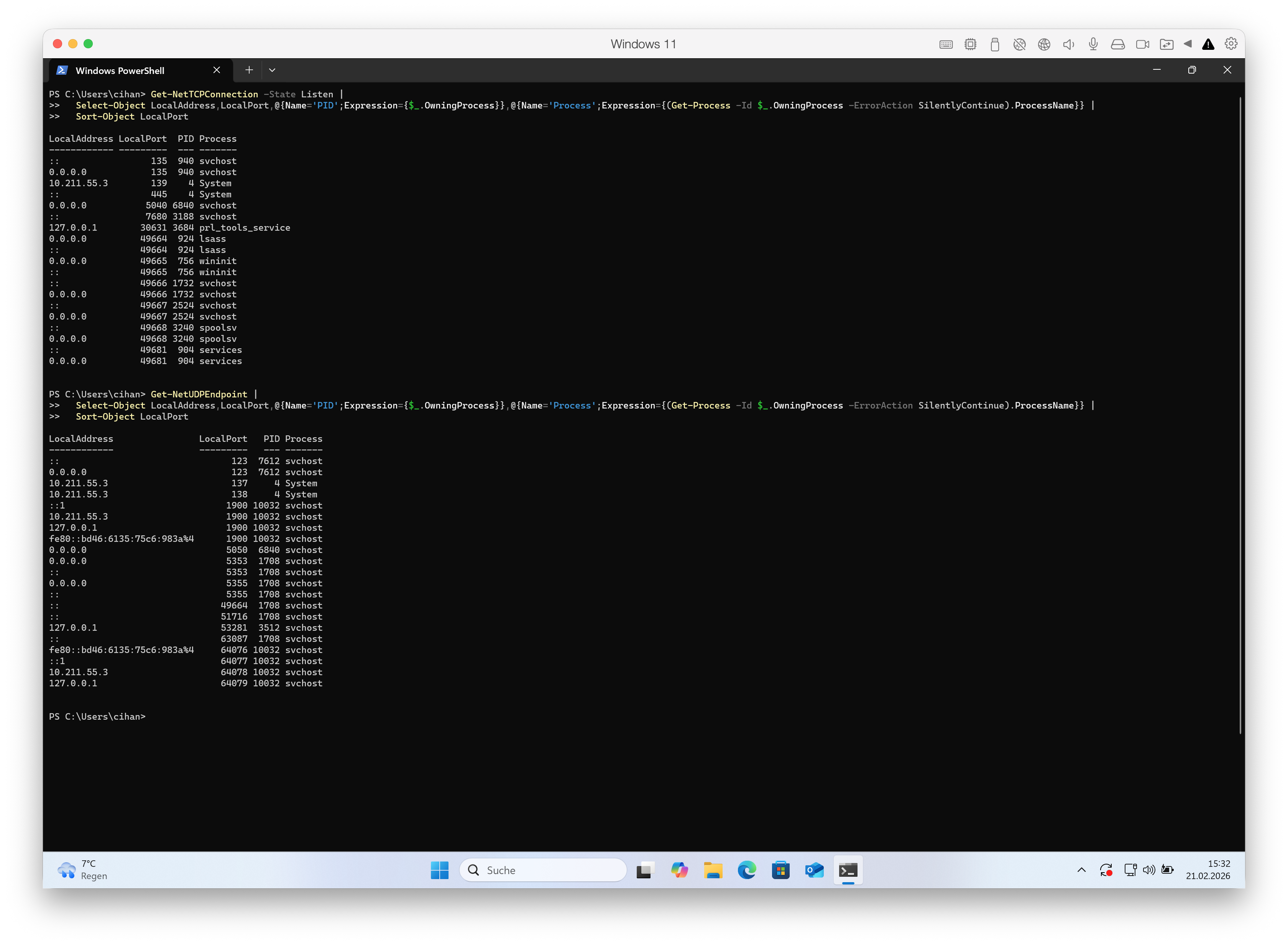
➡️ Quick interpretation rules
0.0.0.0:<port>→ open on all IPv4 interfaces[::]:<port>→ open on all IPv6 interfaces127.0.0.1:<port>/[::1]:<port>→ local-only, not reachable from network
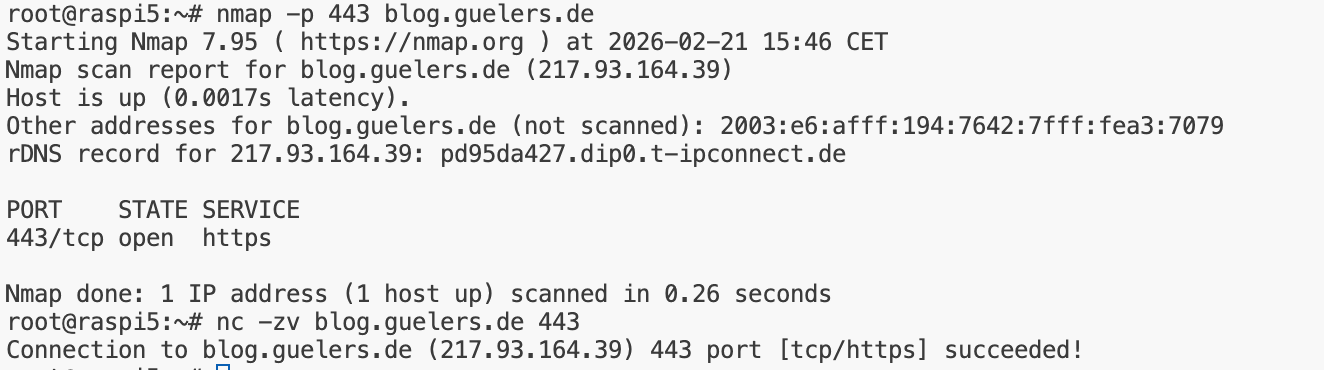
1.2 Check remote listening ports
Bash
➡️ Key parameters
-z= scan mode (no payload)-v= verbose output
➡️ Alternative:
➡️ Key parameters
-p 443= scan specific port-p-= scan full TCP range (1-65535)
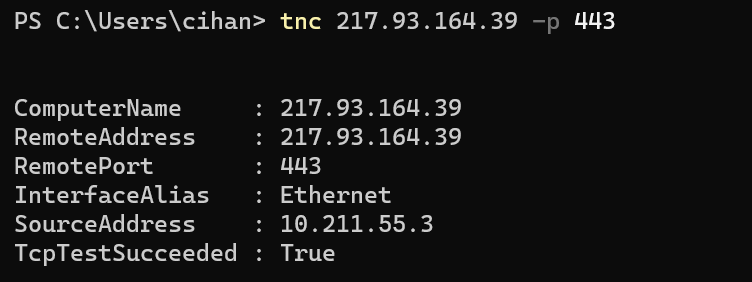
PowerShell
➡️ Focus on: \
- TcpTestSucceeded : True/False
2. Check Website reachability
Bash:
➡️ Key parameters
-I= HEAD/headers only-L= follow redirects
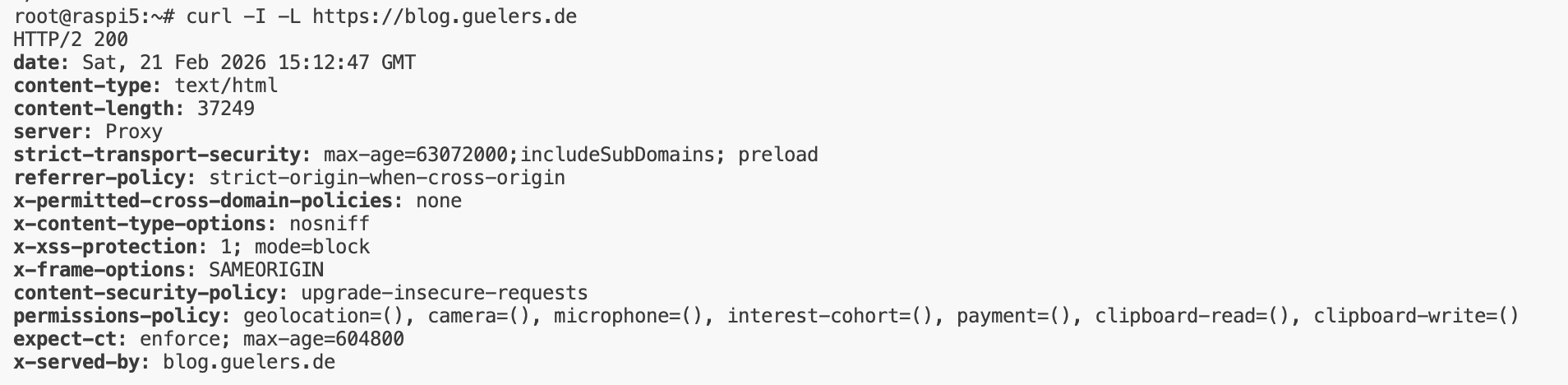
➡️ Quick interpretation rules
HTTP/2 200→ Protocol is HTTP/2, status code 200 OK = request successfuldate: Sat, 21 Feb 2026 15:12:47 GMT→ Server response timestamp (GMT/UTC)content-type: text/html→ Response body is HTMLcontent-length: 37249→ Response size is 37,249 bytes (~37 KB)server: Proxy→ Request is handled by a proxy/reverse proxy layer in front of the appstrict-transport-security: max-age=63072000; includeSubDomains; preload→ HSTS enabled (2 years), includes subdomains, preload-readyreferrer-policy: strict-origin-when-cross-origin→ Sends limited referrer data on cross-origin requests (privacy-friendly default)x-permitted-cross-domain-policies: none→ Disables legacy Flash/Adobe cross-domain policy filesx-content-type-options: nosniff→ Prevents MIME sniffing by browsersx-xss-protection: 1; mode=block→ Legacy XSS filter header for older browsers (deprecated in modern browsers, but harmless)x-frame-options: SAMEORIGIN→ Blocks framing from other origins (clickjacking protection)content-security-policy: upgrade-insecure-requests→ Insecurehttp://subrequests are upgraded tohttps://permissions-policy: geolocation=(), camera=(), microphone=(), interest-cohort=(), payment=(), clipboard-read=(), clipboard-write=()→ Browser APIs are restricted/disabled; reduces attack surface/privacy leakageexpect-ct: enforce; max-age=604800→ Certificate Transparency policy enabled (7 days)x-served-by: blog.guelers.de→ Internal/backend identifier of the serving host.
PowerShell:
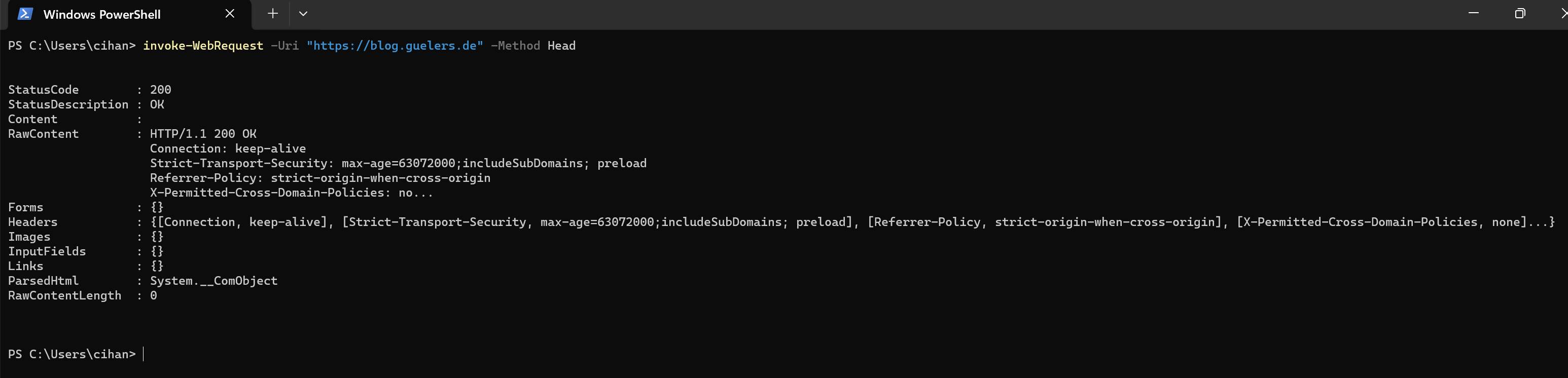
➡️ Quick interpretation rules
StatusCode = 200→ Request successful301/302→ Redirect response401/403→ Auth/permission issue404→ Resource not found500+→ Server-side error- Use
try/catchbecauseInvoke-WebRequestthrows for many 4xx/5xx responses
3. Check DNS
Bash
dig blog.guelers.de A +short
dig blog.guelers.de AAAA +short
dig blog.guelers.de MX +short
dig +trace blog.guelers.de
➡️ Key parameters
A,AAAA,MX= requested record type+short= compact output+trace= full recursive path (root → TLD → authoritative)
PowerShell
CMD:
4. Trace Route
Bash
➡️ Key parameter
-I= ICMP mode (helpful if UDP probes are filtered)
PowerShell
➡️ Reading hints
* * *on a hop is not always a hard failure (ICMP may be filtered)- Sudden latency jump can indicate a bottleneck segment
5. Cli Downloads
Bash:
➡️ Key parameters-L= follow HTTP redirects automatically-C -= resume interrupted download-o large.iso= save file under specified name
➡️ Key parameters
-c= continue / resume interrupted download
PowerShell:
➡️ Key parameters
Invoke-WebRequest= standard HTTP download in PowerShell-Uri= source-OutFile= destination file
➡️ For larger files:
Start-BitsTransfer -Source "https://blog.guelers.de/large.iso" -Destination "C:\Temp\large.iso"
➡️ Key parameters
Start-BitsTransfer= uses Windows Background Intelligent Transfer Service (BITS)-Source= source URL-Destination= target path
➡️ Characteristics:
- Uses available bandwidth intelligently
- Stable on unreliable connections
- Automatic resume
- Suitable for server and enterprise environments
➡️ Quick Comparison
| Tool | Resume | Stability | Enterprise Suitable |
|---|---|---|---|
| curl | Yes | Good | Medium |
| wget | Yes | Good | Medium |
| BITS | Yes | Very High | Yes |
| Invoke-WebRequest | No | Medium | Limited |
6. Validate Webserver Certificate
Bash:
🔨 Expire Date:
echo | openssl s_client -connect blog.guelers.de:443 -servername blog.guelers.de 2>/dev/null | openssl x509 -noout -dates
🔨 Issuer and Coverage:
# Check expiry
echo | openssl s_client -connect blog.guelers.de:443 -servername blog.guelers.de 2>/dev/null | openssl x509 -noout -issuer -subject -ext subjectAltName
🔨 Chain Verification Status:
➡️ Quick interpretation rules
notBefore/notAfter→ certificate validity windowsubjectAltNamemust include the requested hostnameVerify return code: 0 (ok)→ chain validation successful- Non-zero verify code → trust chain / hostname / CA issue
7. References
https://curl.se/docs/ https://www.openssl.org/docs/manmaster/man1/openssl-s_client.html https://nmap.org/book/man.html https://learn.microsoft.com/powershell/
Cheers!