Upgrade ESXi-Hosts Version 7.X to 8.0.3
This article describes how to upgrade ESXi hosts within vCenter using vSphere Lifecycle Manager.
Although there are alternative methods (for example using iLO, iDRAC, or iRMC virtual media with an ISO file), the fastest and easiest approach in most cases is using Lifecycle Manager.
1. Download custom vendor ISO
Since VMware has been acquired by Broadcom, custom vendor ISO files are now only available through Broadcom.
Log in to the Broadcom support website:
For detailed navigation instructions, refer to this Broadcom Knowledge Base article:
VMware vSphere Downloads OEM Custom Images
2. Upload ISO
- Log in to vSphere.
- Open the burger menu in the top-left corner.
- Select Lifecycle Manager.
- Go to Imported ISOs.
- Click Import ISO.
- Click Browse, navigate to the download location, and select the custom ISO.
3. Create Baseline
To deploy the ISO to your ESXi hosts, create a new baseline in Lifecycle Manager:
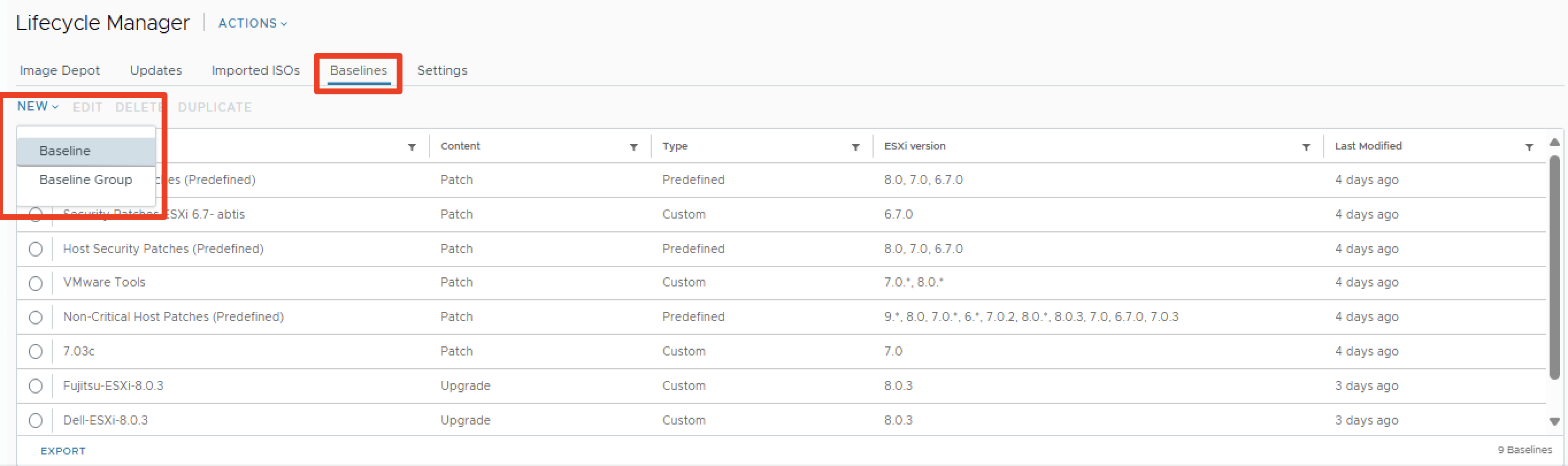
Enter a descriptive name, e.g., Fujitsu-ESXi-8.0.3, and select Upgrade:

You should now see your newly created baseline.
4. Assign BaseLine to ESXi Host
Before applying the upgrade, place the ESXi host into Maintenance Mode.
Then carefully select the correct host:
- Go to Updates.
- Open Baselines.
- Click Attach → Attach Baseline or Baseline Group.

Select your newly created baseline.
5. Remediate Baseline (Upgrade ESXi Host)
Now it’s time to apply the baseline:
- Select the baseline.
- Click Remediate.
- Accept the VMware General Terms.
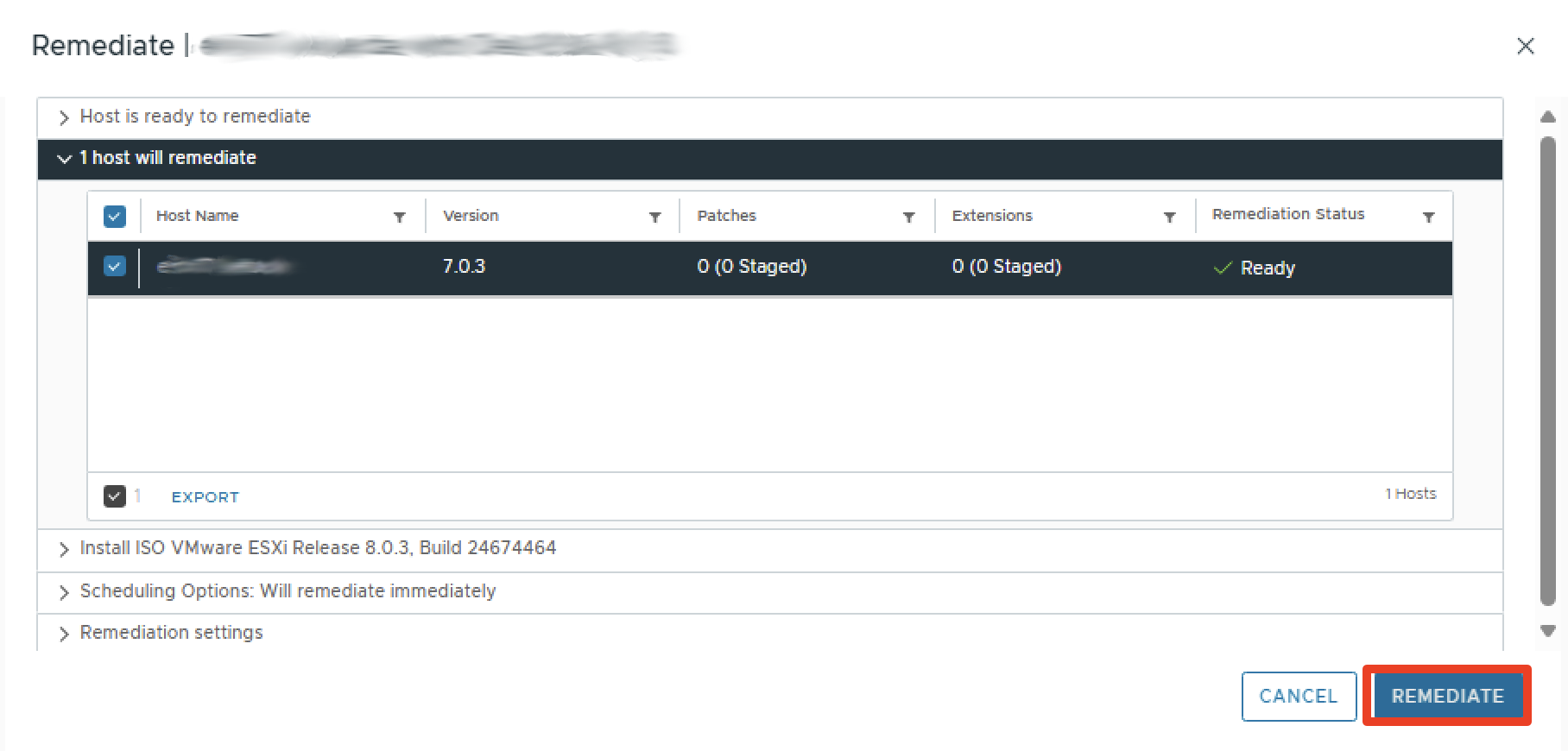
6. Monitor Process
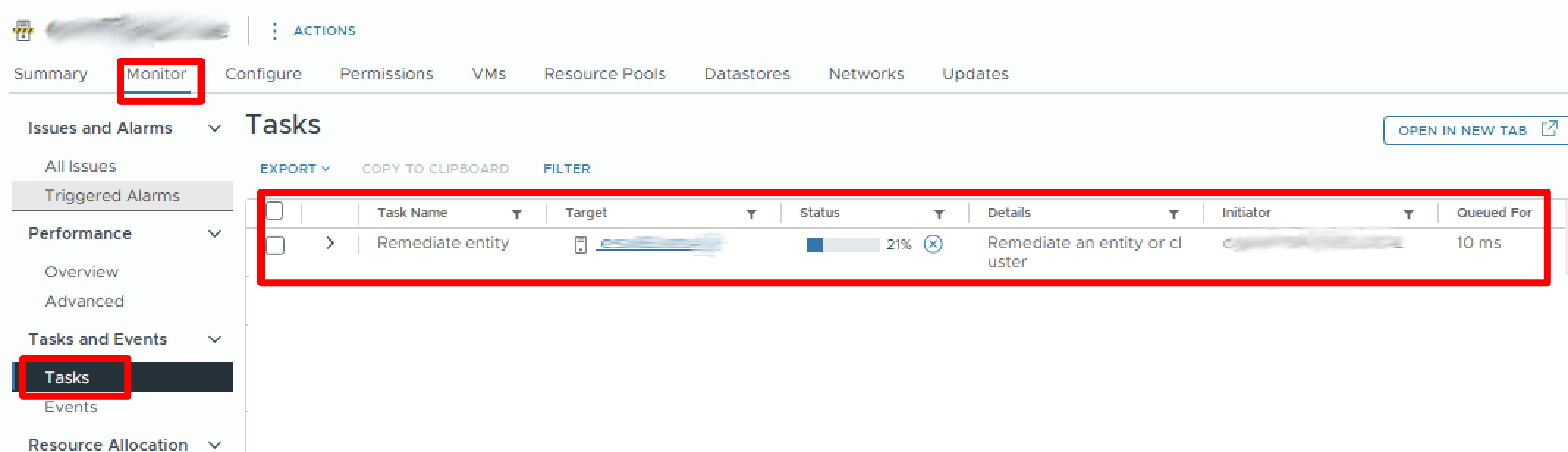
- Go to Monitor.
- Check the Tasks tab.
The upgrade progress will be displayed here:
After the upgrade, it is recommended to remediate the default baselines as well:
🔴 Host Security Patches (Predefined)
🔴 Critical Host Patches (Predefined)
Check ESXi Version with PowerShell (PowerCLI)
If you manage a larger environment, you can quickly check ESXi versions with PowerCLI:
Rollback | revert ESXi Host to a previous version
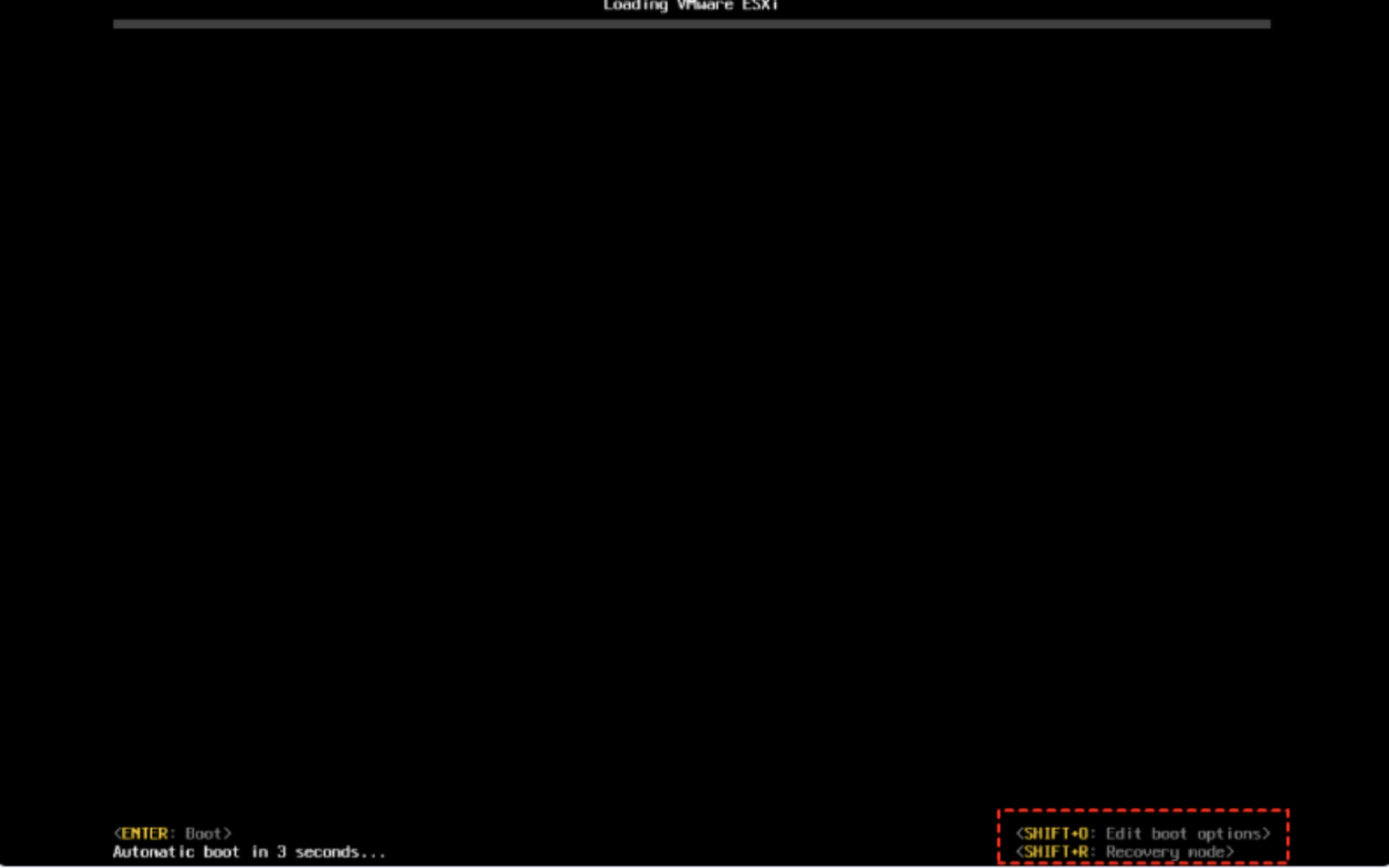
If you encounter issues after the upgrade, you can roll back to the previous ESXi version:
SHIFT + R
Incompatible VIBs
During the pre-compliance check, you may encounter issues with VIBs (vSphere Installation Bundles). These can usually be removed manually via SSH:
- Connect to the ESXi host via SSH.
- Run the following commands:
esxcli software vib list #to list all installed vibs
esxcli software vib list | grep VIBNAME #to grep/search for specific vib
esxcli software vib remove -n VIBNAME #remove vib
reboot #reboots the esxi host
References
https://knowledge.broadcom.com/external/article/316592/reverting-to-a-previous-version-of-esxi.html
Cheers!