PowerShell Modules
A PowerShell module is a package that contains PowerShell code such as functions, variables, workflows, and more — bundled in a reusable format. Modules enable users to import additional commands into their session, making them an efficient way to extend PowerShell’s capabilities.
The benefits of writing your own module
- Reusability
- Organization
- Portability/Flexibility
- Scalability
For example you could create your own customized Modules and publish/deploy them through GPOs on your target Device such as Workstation or Dev-Server.
PowerShell Module Requirements
A module requires at least one .psd1 file (mandatory).
Best practice also recommends creating a .psm1 file (module manifest) that describes the module.
| Name | Filetype (Extension) | Purpose | Mandatory |
|---|---|---|---|
| PowerShell Script Module | .psd1 | PowerShell Code | ✅ Yes |
| PowerShell Data File | .psm1 | Module Manifest | ❌ No |
Create PowerShell Module
For better organization purpose we will create a folder for each module. This is how to keep things together.
Our folder structure will look like this:
Create PSD1 File
It’s just a PowerShell script with a .psd1 (instead of .ps1) extension. When you use Import-Module, PowerShell loads this file and makes its content available in your session.
Create a empty psd1 file.
Create PSM1 File
Create .psm1 file with some metainformation.
New-ModuleManifest `
  -ModuleVersion '1.0' `
  -Path 'C:\MyModules\CustomSearch\CustomSearch.psd1' `
  -Author 'Cihan.G' `
  -Description 'Search files due specific filter' `
  -GUID "$((New-Guid).GUID)" `
  -RootModule 'C:\MyModules\CustomSearch\CustomSearch.psm1'
Add Function into our Module
Open your favorite Editor Tool and open CustomSearch.psm1, we are going to add a function into it.
function customsearch {
    <#
    .SYNOPSIS
        Search for specific files types.

    .DESCRIPTION
        This Function searches for specific/pre-defined filetypes within local computer.

    .PARAMETER filetype
        File-Extension without *.

    .PARAMETER path
        Searchpath for example c:\

    .EXAMPLE
        customsearch -filetype 'bat' -path 'c:\'
    #>

    #region parameter
    [CmdletBinding()]
    param (
        [Parameter(Mandatory = $true)]
        [string]
        $filetype,

        [Parameter(Mandatory = $true)]
        [string]
        $path
    )
    #endregion

    #region init
    if(Test-Path $path){
       $files = Get-ChildItem -Path $path -Recurse -Filter "*.$filetype" -File |
         Select-Object @{Name='Path'; Expression = { $_.FullName }}
        $files
        Write-host "Found $($files.count) files"
    }else{
      write-host "$($path) does not exist"
    }
    #endregion
}
Import Module
There are several ways of importing modules into PowerShell Session. We are going to use one of the three (Windows PowerShell) Module paths. The advantages are:
- Modules auto-load without needing full paths.
- Standardized and consistent across systems.
- Separates system-wide vs. user-specific modules.
- Supports multiple versions of modules.
- Works smoothly with PowerShellGet and package managers.
- Trusted locations for security compliance.
- Easier maintenance, updates, and troubleshooting.
👉 In short: Default paths = less hassle, more compatibility, and smoother automation.
The default paths can be output with Powershell:
1️⃣ Current User: Personal Modules Folder.
C:\Users\cihan\Documents\WindowsPowerShell\Modules
2️⃣ AllUsers: All Users Module Folder.
C:\Program Files\WindowsPowerShell\Modules
3️⃣ Microsoft: Microsoft default Modules Folder.
C:\WINDOWS\system32\WindowsPowerShell\v1.0\Modules
When using PowerShell (Core) there are at least two more paths. It is also possible to add additional paths into the environment variable 'PSModulePaths'.
Move our Module into default all users path
So we are going to move our Module Folder into the second folder:
Move-Item -path 'C:\MyModules\CustomSearch\' -Destination 'C:\Program Files\WindowsPowerShell\Modules'
Afterwards our PSM1 file needs to be adjusted, open it in your favorite editor and change the following path:
RootModule = "C:\Program Files\WindowsPowerShell\Modules\CustomSearch\CustomSearch.psm1"
Use our custom Module
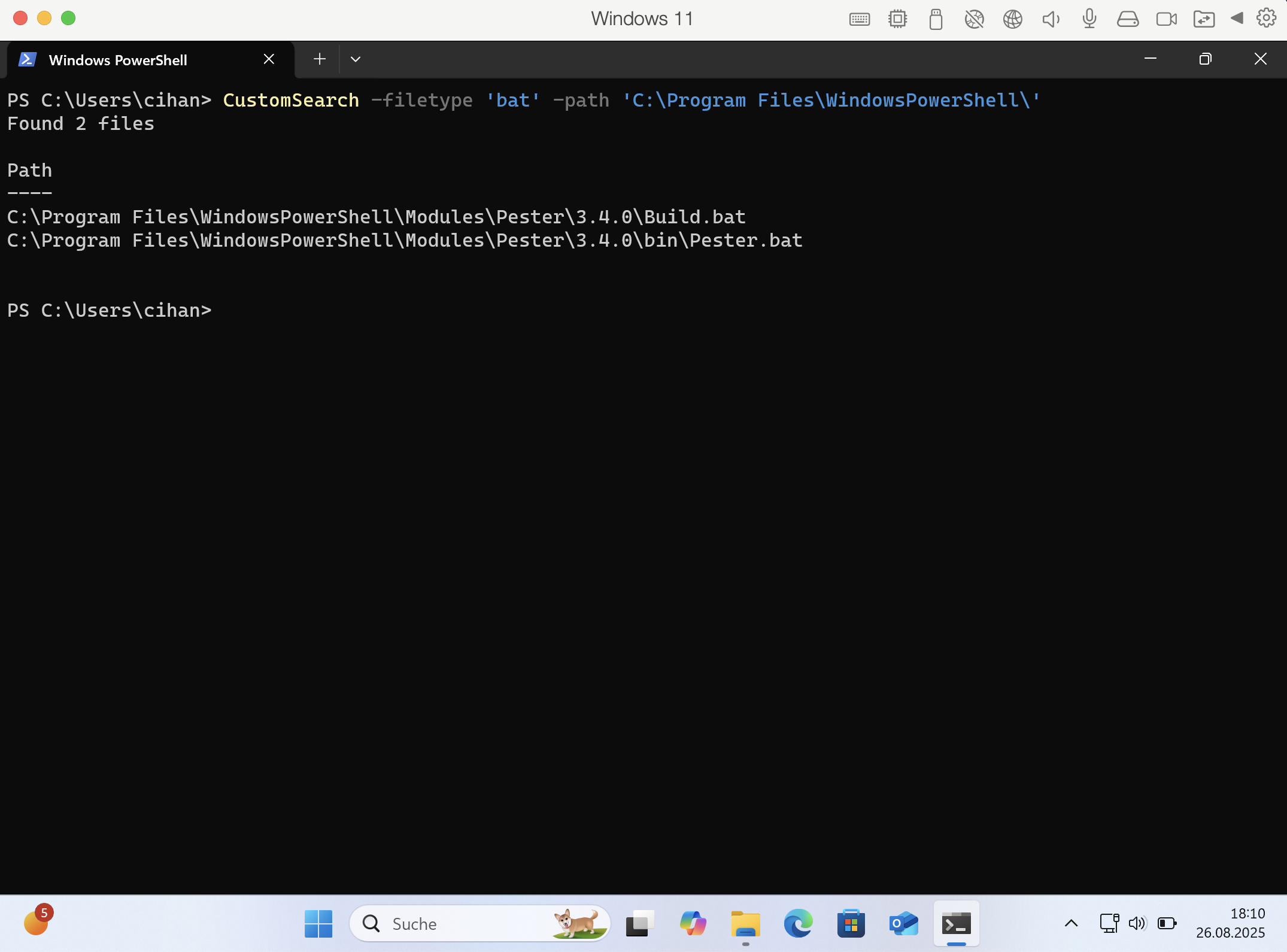
After starting a new PowerShell Session we should be able to use our new function 'customsearch', IntelliSense will also work:
Cheers!